Reply Drafter User Guide
This guide provides detailed instructions for using Reply Drafter's phase-by-phase office action response workflow, from project setup to the filing-ready reply letter.
Recommended Workflow
Reply Drafter works through an office action the way a careful attorney does — in sequence, with your review between steps:
- Set up the case → create a project, confirm jurisdiction and output language, import or upload the documents
- Run the pre-checks you need (optional) → prosecution history, priority, added matter, clarity, novelty, inventive step
- Phase 1: Patentability Workup → the tool's own independent opinion on every independent claim
- Phase 2: Examiner Comparison → decision point: defend the claims as filed, or amend
- Phase 2.5: Client Reply Check (optional, if you have a client's draft) → adopt it, adapt it, or replace it
- Phase 3: Fallbacks (if amending) → generate and rank amendment options
- Phase 4: Client Opinion Report → the complete assessment for your client
- Phase 5: Formal Reply Letter → the filing-ready response with track-changes amended claims
Each phase's output is editable, and your edits carry into the later phases. Phases can be skipped — Phase 1 can fold in any pre-checks you did not run individually.
Project Setup & Patent Import
Purpose
Give Reply Drafter the complete case file: the application as filed, the current claims, the office action, and the cited prior art
Steps
- Pick or create a project: each project is an isolated, durable workspace — typically one per patent case. Your documents, analyses, and drafts are saved so you can return weeks later.
- Confirm the case profile: select the jurisdiction (EP, US, PCT, BE, CN, JP, KR, IN, CA, or AU) and the output language, then click Confirm case profile. Every analysis applies the selected jurisdiction's law, so this is required before any phase can run.
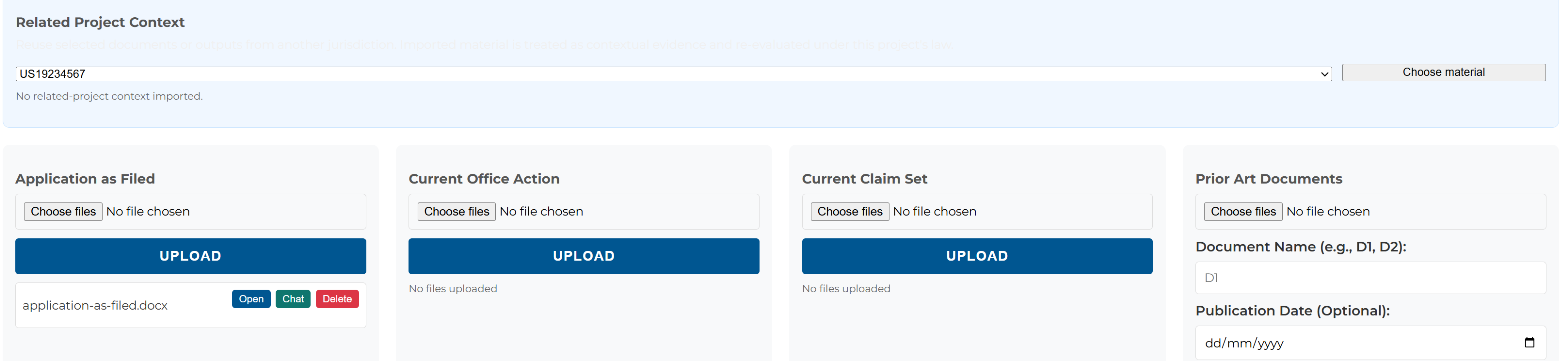
- Automatic Patent Import (fastest): enter an EP, WO, or US application or publication number and click Fetch Documents. The application as filed, claims, office action, cited prior art, and priority documents are retrieved from the EPO and USPTO registers and filed into the right slots automatically. For EP cases, a fallback path also retrieves register-only documents that the standard APIs cannot return on their own — including office actions, search opinions, replies, and scanned priority documents, even unpublished US provisional priority documents.
- Manual upload: alternatively upload PDF or Word files per document type. Give each prior art document a short name (D1, D2, …) and optionally its publication date.
Per-Document Controls
- In analysis toggle: exclude a specific uploaded document from the AI's context without deleting it — useful for keeping a superseded or irrelevant upload on hand while leaving it out of the phases
- Per-document chat: ask questions scoped to a single document (e.g. "what does D2 actually disclose?") without pulling in the rest of the case file


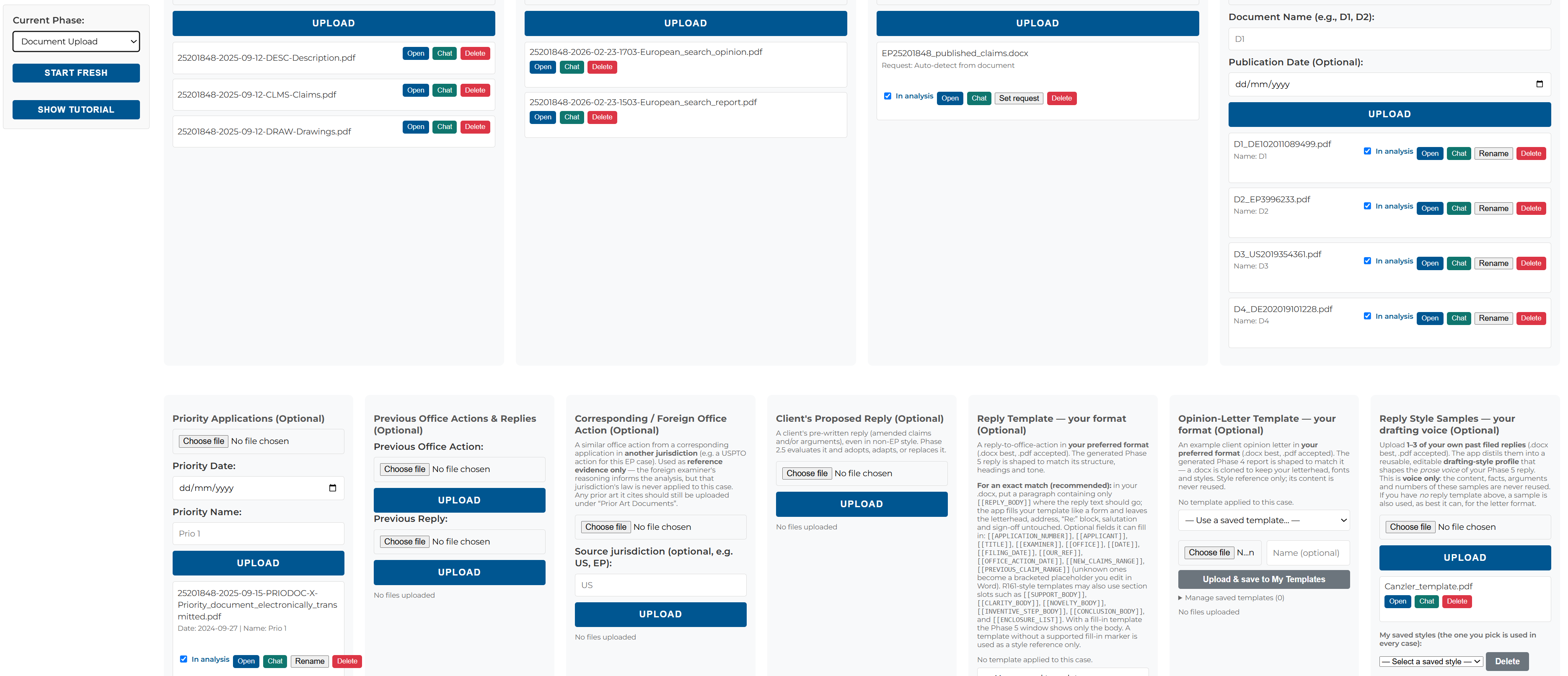
Optional documents that unlock extra analyses
- Priority applications: enable the priority entitlement check
- Previous office actions and replies: enable the prosecution history analysis
- A corresponding foreign office action: contextual evidence for consistency across your patent family
- A client's proposed reply: enables the client reply check
- Reply/opinion-letter templates and style samples: drafts follow your firm's format and your drafting voice
Tips
- The minimum set for a full analysis: application as filed, current office action, current claim set, and the cited prior art
- Automatic import saves the most time on EP cases — office actions and search opinions are fetched from the Register too
Focused Pre-Checks
Purpose
Six optional, targeted analyses you can run individually before the main workup, in the order an attorney would typically consider them:
- Prosecution History: claim evolution, the examiner's persistent concerns, and which past arguments worked or failed (requires previous office actions/replies)
- Priority: which claim features are entitled to the priority date (requires priority documents)
- Support / Added Matter: basis of the claims in the application as filed
- Claim Clarity: wording objections before they arise
- Novelty: each prior art document analyzed on its own
- Inventive Step: combinations, assessed after the novelty check
Output
Each pre-check produces its own editable report, saved per project and available to the later phases
Tips
- You do not have to run these individually — Phase 1 can include them automatically via its checkboxes
- Run them separately when you want to review and steer one aspect (e.g. added matter) before the full workup
Phase 1: Patentability Workup
Purpose
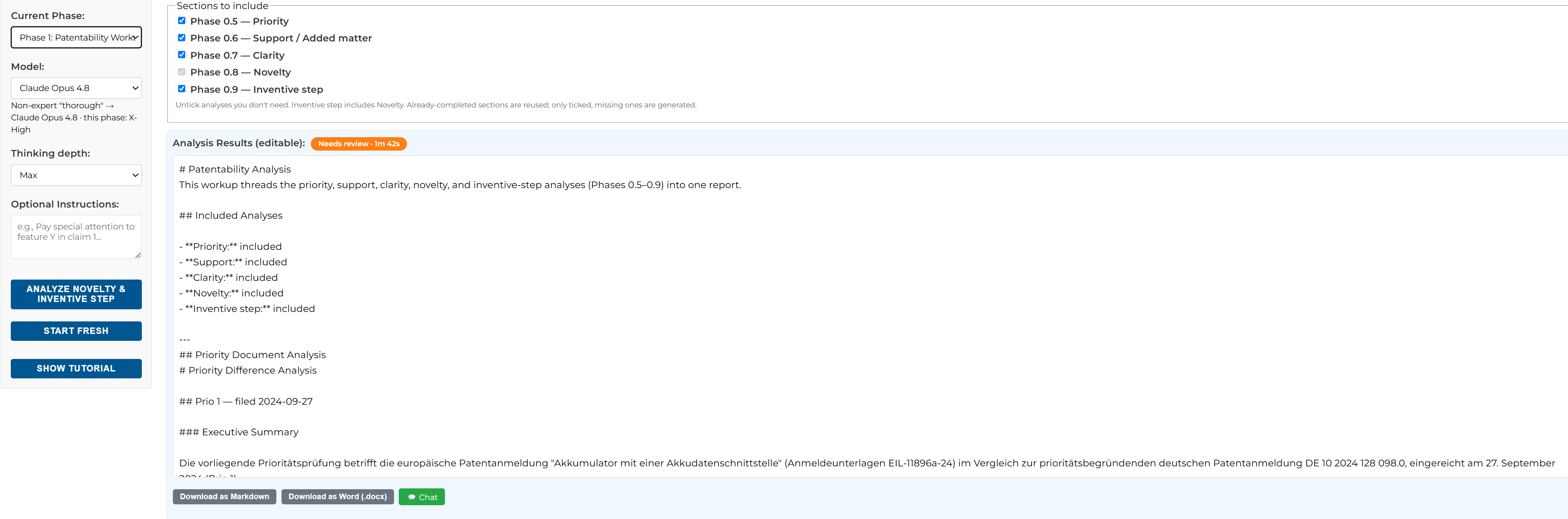
The core analysis. Reply Drafter forms its own independent opinion before reading the examiner's — rigorous, examiner-grade reasoning for every independent claim that mirrors how an attorney builds a case, weighing each prior art reference on its own merits before considering combinations
Input
- The uploaded case documents (used automatically)
- Sub-phase checkboxes: select which pre-checks (priority, support, clarity, novelty, inventive step) should be folded into the workup
- Optional instructions: steer the analysis (e.g. "focus on the D1+D2 combination")
Output
A complete patentability report per independent claim, with the reasoning per prior art document and combination. The output is an editable text — your edits carry into the later phases.
Tips
- Review the claim-feature mapping carefully — correcting it here improves everything downstream
- Use chat to challenge conclusions you disagree with before moving on
Phase 2: Examiner Comparison
Purpose
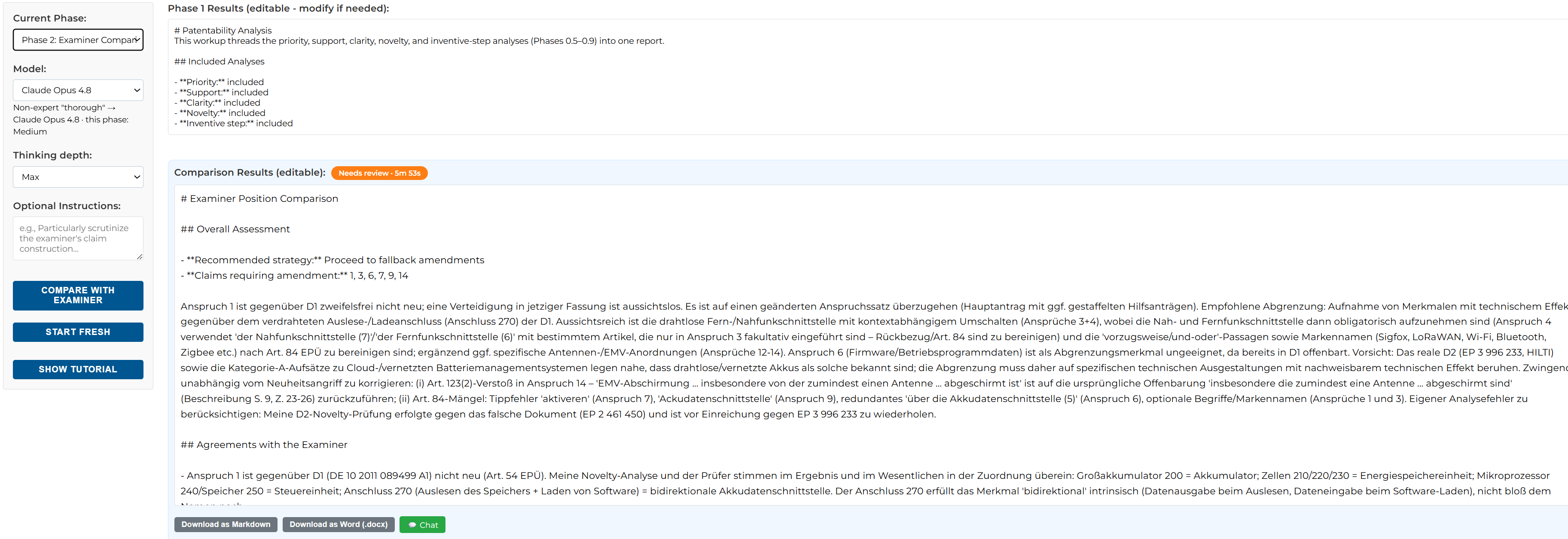
Compare the independent Phase 1 assessment with the examiner's objections: where the examiner is right, where the position is persuasive but rebuttable, and where there are factual errors or misreadings of the references
Input
- The Phase 1 report (auto-populated, editable)
- The current office action (required for this phase)
Output
A point-by-point comparison and a strategy recommendation. This is the decision point: defend the claims as filed → go to Phase 4; amend → continue with Phase 3.
Tips
- If you uploaded a client's proposed reply, run the Client Reply Check here to test it against the analysis before filing
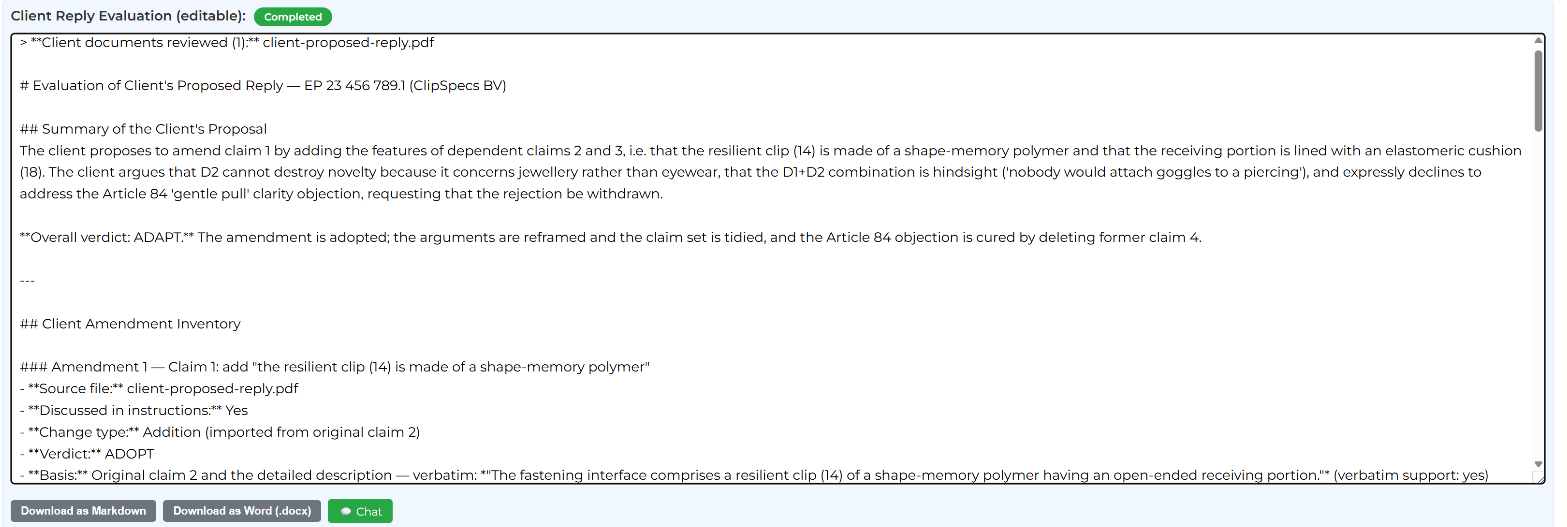
Phase 2.5: Client Reply Check (Optional)
Purpose
If your client (or a colleague) has already drafted a proposed reply, this step evaluates it against the independent analysis and the examiner's objections — and recommends whether to adopt it as-is, adapt it, or draft a replacement
Input
- The client's proposed reply, uploaded during project setup
- The Phase 1 and Phase 2 results (used automatically)
Output
A recommendation — adopt, adapt, or replace — with the reasoning, plus any specific gaps or risks found in the client's draft
Tips
- Run this before Phase 3 — if the client's draft is adoptable, you may be able to skip fallback generation entirely
Phase 3: Fallback Generation & Ranking
Purpose
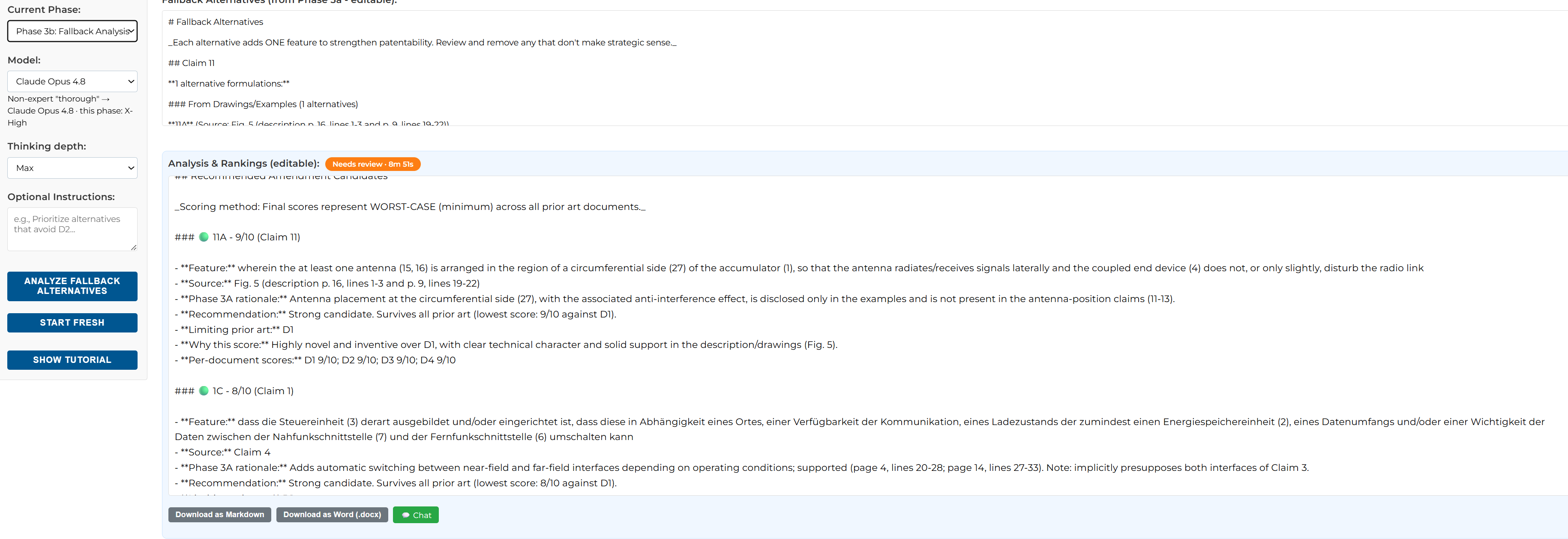
When amendment is the right strategy, generate an exhaustive list of fallback amendments and rank them — so you choose from scored positions, not guesses
How it works
- Generation: fallback options are built thoughtfully, one carefully considered feature at a time, sourced from the dependent claims, the description, or the drawings — not a scattershot combination list — so every position stays clean, supported, and arguable.
- Analysis: every fallback is analyzed against the prior art and ranked by strength, with the reasoning behind each ranking.
Output
A ranked list of amendment options with per-option reasoning
Tips
- Delete fallbacks you would not file from the generated list before running the analysis step — the ranking gets sharper
Phase 4: Client Opinion Report
Purpose
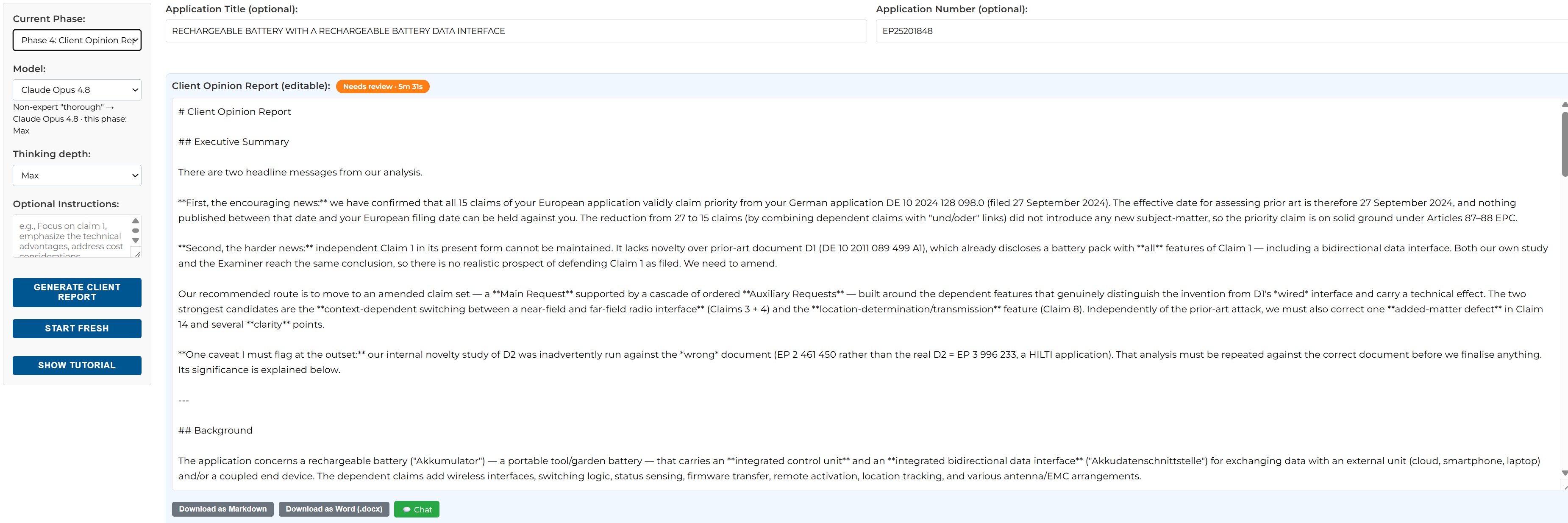
Compile everything completed so far into one comprehensive report for your client: assessment, strategy, and recommended amendments
Input
- All completed phase results (used automatically)
- Application title and number for the letterhead
Output
A client-ready opinion report, downloadable as Word or Markdown. Works with or without an office action — so Phase 4 is also the end point for pre-filing or freedom-to-respond studies.
Tips
- Upload an opinion-letter template beforehand and the report follows your firm's format
Phase 5: Formal Reply Letter
Purpose
The final deliverable: a filing-ready reply to the examiner
Input
- The Phase 4 report (used automatically)
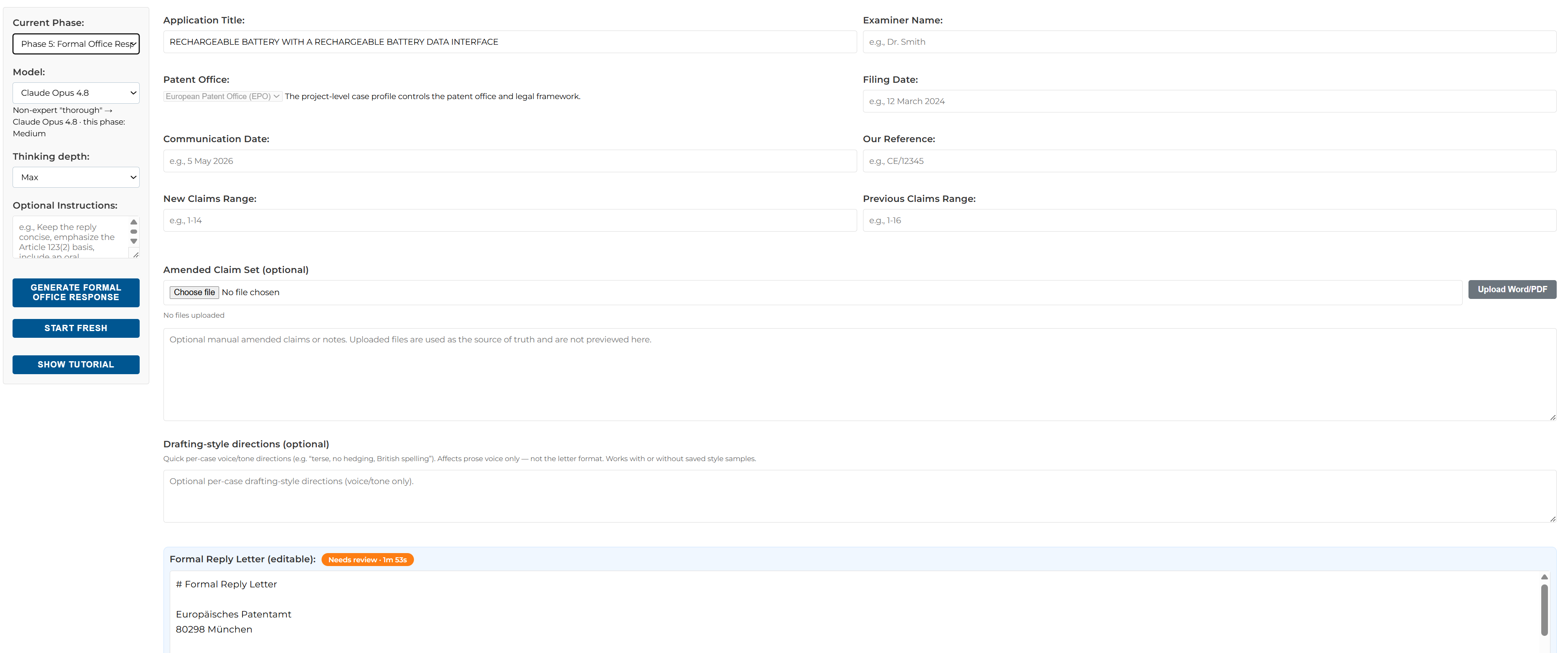
- Case metadata: application number, applicant, title, examiner, office, filing and office action dates, your reference, claim ranges
- Amended claim set (optional): upload your amended claims as a Word file — track changes are preserved and reflected in the letter
- Optional instructions and drafting-style directions: per-case guidance (e.g. "keep the reply concise") and voice/tone notes (e.g. "terse, British spelling")
Two Drafting Modes
Phase 5 offers two ways to produce the letter:
- Guided step-by-step (default): the reply is built section by section and each section is agreed with you before the final letter is assembled. Click Start guided reply; the wizard detects which issues the examiner actually raised (tick or untick Clarity, Novelty, and Other objections — Claims & Support and Inventive Step are always drafted), then walks through the sections one at a time. For each section, review the draft, use Chat to discuss and revise it, and click Agree & continue to lock it (you can Reopen a locked section later). Once every section is agreed, the letter is assembled.
- Draft in one go: generates the complete letter in a single pass, as before.
Output
A formal reply letter suitable for filing, with arguments and amended claims, downloadable as Word or Markdown
Tips
- This phase requires the office action to be uploaded
- Prefer the guided mode when you want control over each argument; use one-go drafting for a quick first draft
- In guided mode, keep the
<<<CLAIM_SET>>>blocks in the Claims & Support step intact — they become the filed enclosures once you agree - Add reply style samples (see Style Profiles) and the letter is written in your drafting voice
Chat Refinement & Track Changes
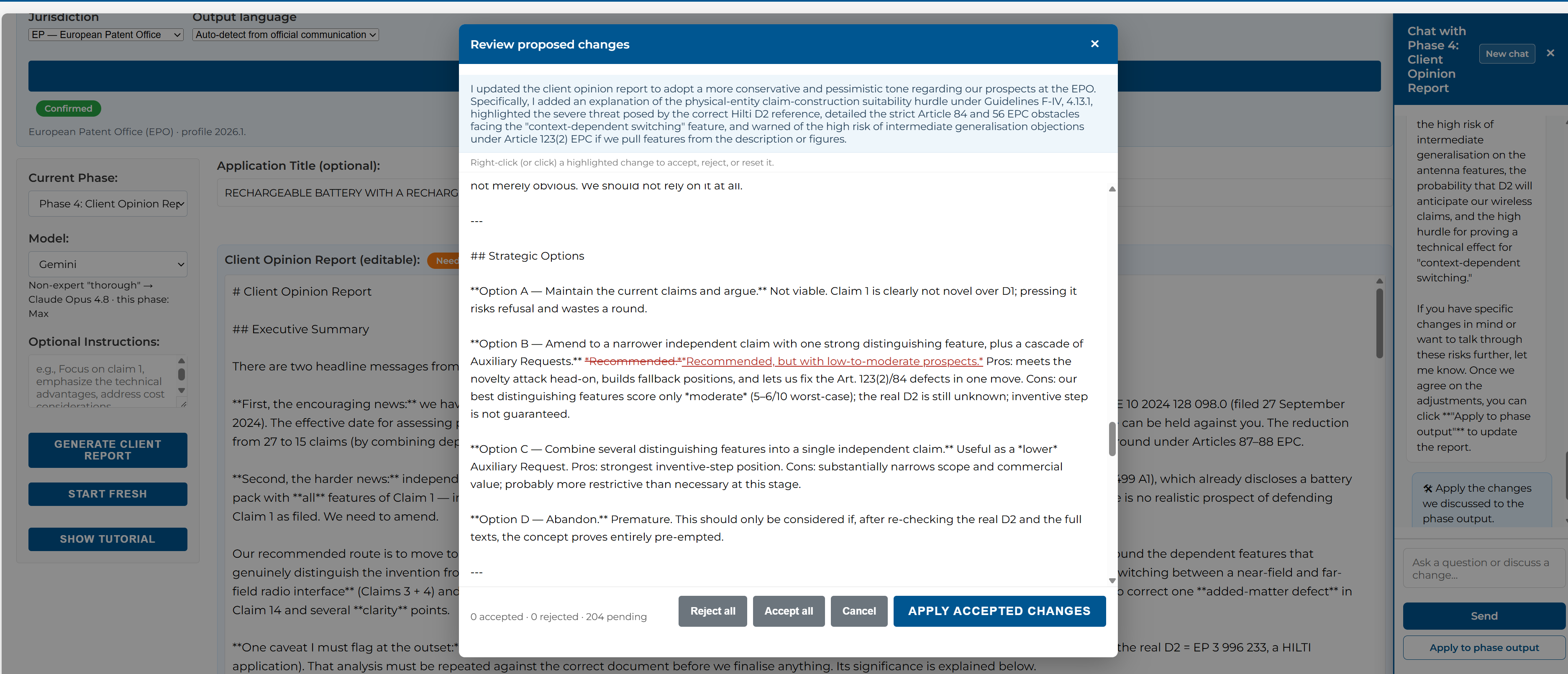
Every phase output has a Chat button: discuss the analysis, ask questions, or request specific edits. When you apply a suggestion, a track-changes review lets you accept or reject each modification individually before it touches your text. You can also chat directly with the uploaded documents — for example, to ask what D2 actually discloses.
Related Project Context
If a case is related to another one of your own projects — for example, a US filing that shares prior art and analysis with its parent EP case — you can pull in that project's documents or completed analyses as read-only context, instead of re-uploading and re-analyzing them from scratch.
Tips
- Useful across a patent family — link a related EP case to reuse prior art analysis already done for the corresponding US case, or vice versa
- Linked context is read-only in the current project; edit it in its original project if it needs correcting
Workspaces, Jurisdictions, Templates & Style Profiles
Durable Project Workspaces
Each project keeps its documents, analyses, and drafts permanently — come back weeks later and continue where you left off. Create, duplicate, rename, or delete projects from the project bar; use one project per case.
Jurisdiction Profiles
EP, US, PCT, BE, CN, JP, KR, IN, CA, AU — the confirmed profile controls the legal framework applied in every phase and the output language. Changing it marks generated outputs as stale so nothing mixes legal standards.
Templates & Style Profiles
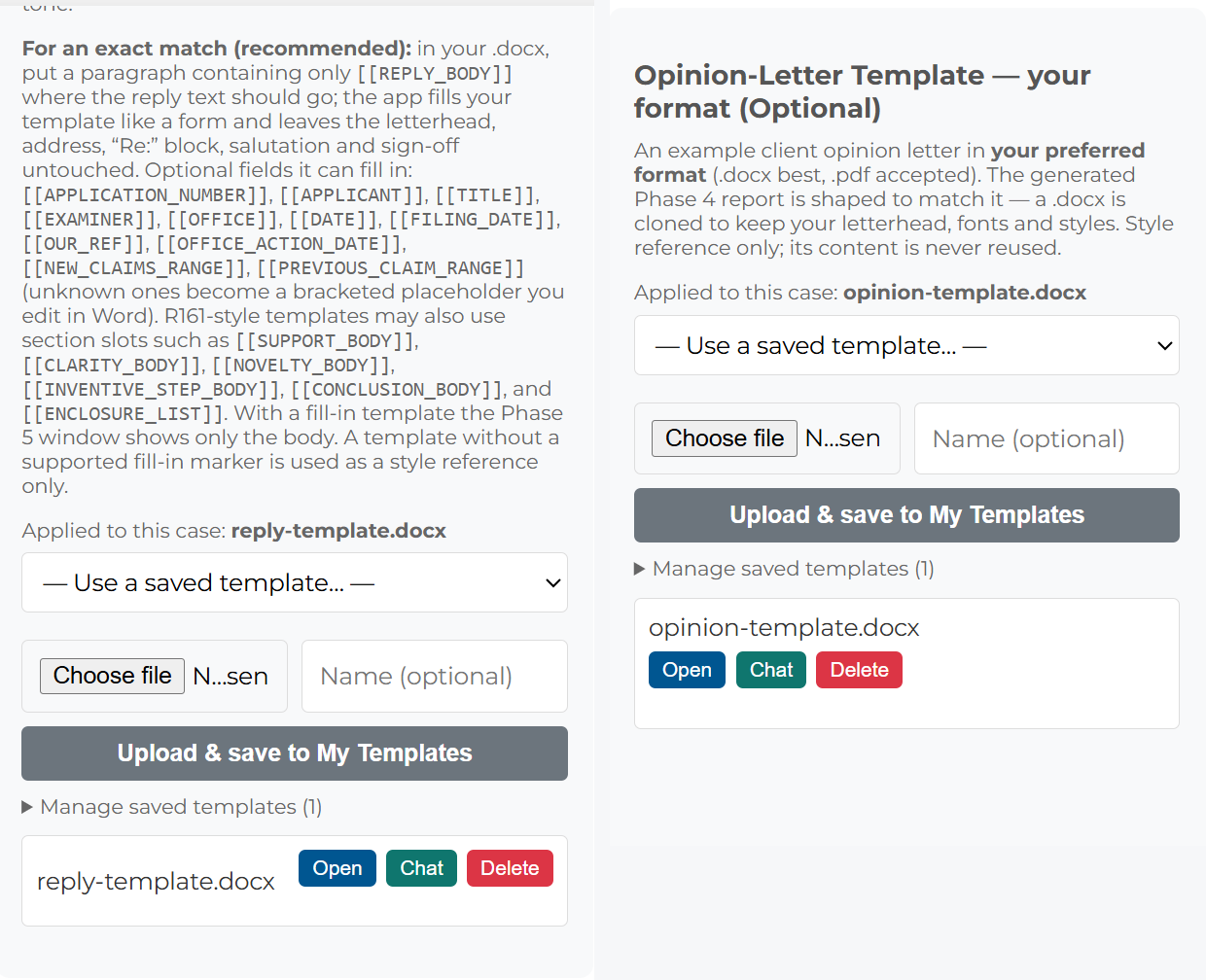
- Reply and opinion-letter templates: upload your firm's own .docx template with fill-in placeholder tokens for the fields Reply Drafter should populate. Saved templates go into a personal, reusable library you can apply to any future case — no need to re-upload per project.
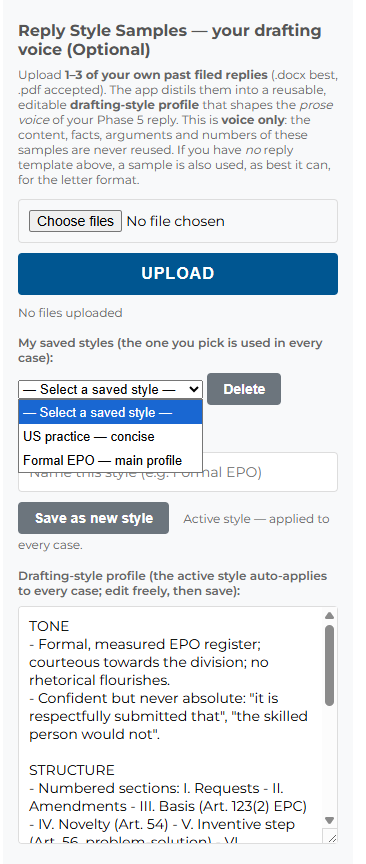
- Drafting-style profiles: upload 1–3 replies you have filed and click Analyze style. Reply Drafter builds an editable style profile covering tone, structure, and phrasing — built to leave case-specific content out of the saved profile, capturing how you write rather than what any one case was about. Save multiple named profiles (e.g. one per attorney or per client) and switch between them per case.
Settings & Options
Model Selection
Reply Drafter runs exclusively on frontier models:
- Gemini – default
- Claude Opus – selectable, where enabled for your account
- GPT – selectable, where enabled for your account
There is no EU-hosted open-source option in this tool — the depth of multi-phase legal reasoning it performs requires frontier-class models. All providers are used under business terms that prohibit training on your data. Depending on your account, a Speed toggle (Fast / Thorough) or a thinking-depth selector is shown in the sidebar.
Credits & Time Remaining
- Credits: Your available balance for using the application.
- Time Remaining: Once you use the tool, 0.4 credits will be deducted. The tool can then be used without limitations for 24 hours.
Start Fresh
The Start Fresh button clears the documents and results of the current workspace to begin a new case. Your other projects are untouched.
Guided Tutorial
The Show Tutorial button in the sidebar replays the interactive walkthrough of the whole workflow at any time.
Voice Dictation
Every instructions and chat box has a microphone button. Recording happens in your browser; transcription runs on EU-hosted infrastructure. The microphone only appears when the page is loaded over a secure connection (https, or localhost).
Tips for Best Results
Input Quality
- Upload the complete office action and all cited prior art documents — the analysis is only as good as the file
- Use automatic patent import where possible; it fetches the right documents in the right places
- Name prior art consistently (D1, D2, …) as cited in the office action
Workflow Efficiency
- Review and edit each phase before the next — your edits propagate automatically, no copy-paste needed
- Use chat to adjust an output rather than rerunning a whole phase
- Keep one project per case and return to it for each office action in the same prosecution
- Use the per-document In analysis toggle to exclude superseded uploads without deleting them, keeping the context focused in large or long-running cases
- Link related cases with Related Project Context instead of re-uploading shared documents